


Why This Matters
If you’ve ever opened a Power BI report and found a slicer full of options that return no results, you know how frustrating it can be. Users click through multiple items only to see blank visuals, giving the impression that the report is broken or incomplete.
This happens because Power BI displays all the values in your dimension table, even if those values have zero related records in your fact table.
Fortunately, there’s a fast and reliable fix.
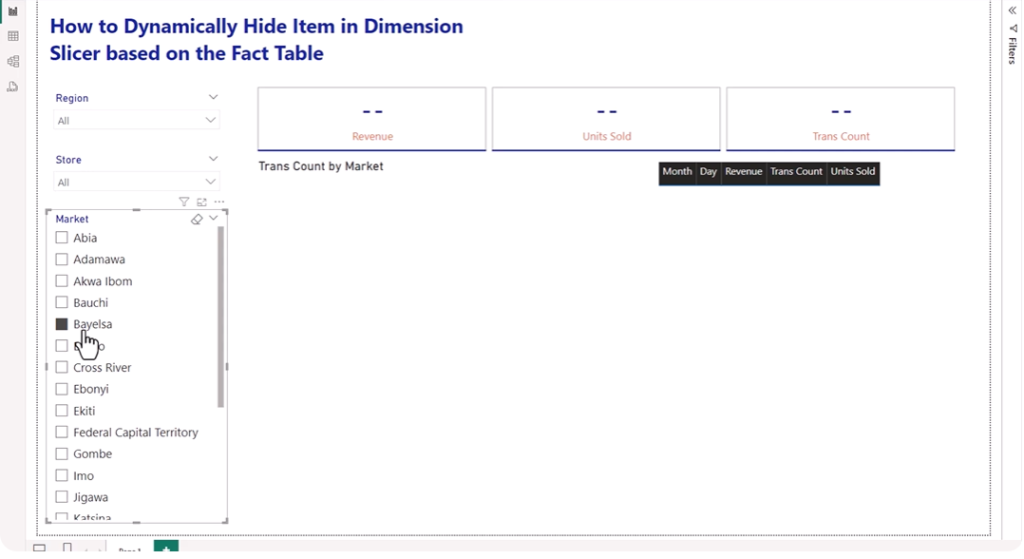
The Solution: Dynamically Hide Empty Slicer Items
By creating a simple DAX measure and applying it as a visual-level filter, you can ensure that slicers only show items that actually have data.
The result?
Cleaner slicers, faster decision‑making, and a more professional reporting experience.
Step-by-Step: How to Hide Empty Items in Power BI Slicers
Step 1: Create the DAX Measure
Use this simple formula (modify table and column names as needed):
Dim Filter =
IF(
    DISTINCTCOUNT(FactTable[ColumnID]) > 0,
    1,
    0
)What this does:
- Counts how many times a dimension value appears in your fact table
- If the value appears at least once → return 1
- Otherwise → return 0
Step 2: Apply the Filter to the Slicer
- Select your slicer
- Open the Filters pane
- Drag Dim Filter into Filters on this visual
- Set it to show only items where: Dim Filter is greater than 0
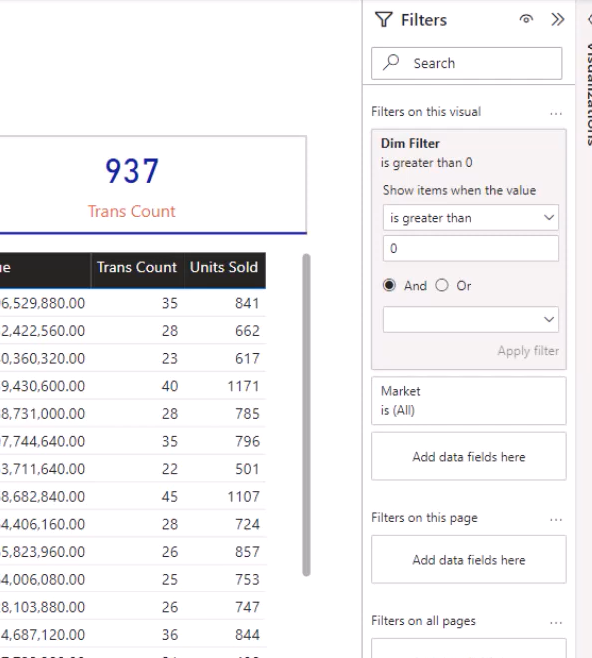
Instantly, all empty slicer items disappear.
Step 3: Enjoy the Improvement
Your slicer now displays only the values that matter.
No more empty states. No more confused users.
Real‑World Examples
1. Retail Stores
You may have 500 stores in your master table, but only 200 had sales this month.
Filtered slicers show only the 200 active stores.
2. Product Categories
You sell 50 product categories, but only 15 have inventory.
Your slicer now shows 15 relevant options, not 50.
3. Sales Regions
Your company operates in 100 cities, but only 30 had Q4 transactions.
The slicer reflects only the 30 active cities.
Common Mistakes to Avoid
1. Missing or Incorrect Relationships
Make sure your dimension table is correctly related to your fact table.
2. Incorrect Column References
Double‑check column names—especially if your model uses custom or renamed fields.
3. Not Testing with Fresh Data
Add or remove data and confirm the slicer updates dynamically.
Advanced Version: Multiple Fact Tables
If your dimension relates to multiple datasets (e.g., Sales + Inventory), use this extended version:
Dim Filter =
VAR HasSales = DISTINCTCOUNT(Sales[Store])
VAR HasInventory = DISTINCTCOUNT(Inventory[Store])
RETURN
IF(HasSales + HasInventory > 0, 1, 0)Watch the video here